More than 5.5 million websites run WP Rocket — and attackers started hitting them over the Thanksgiving holiday, while most site owners were offline. No login was needed. No password was guessed. A single crafted request to a public endpoint was enough to plant a file on a vulnerable site and take control of it.
If you run WP Rocket, you need to know how to check if WP Rocket hacked your site — right now, not next week. The good news: the check takes about five minutes, and the fix is a single update. The bad news: updating alone does not clean a site that is already hacked. An update stops new attacks, but it does not remove the files an attacker already planted. That is why the check matters as much as the update, and why this guide walks you through both, in order.
By the end of this article, you will know how to check if WP Rocket hacked your site — whether your site is affected, how to spot the signs of a real breach, what to do if you find one, and how to lock the door for good.
What Is the WP Rocket Vulnerability (CVE-2026-125812)?
WP Rocket is a paid WordPress caching and performance plugin from WP Media. It speeds up websites, and it is one of the most popular performance plugins in the WordPress world. Learning how to check if WP Rocket hacked your site starts with understanding the flaw itself. On November 23, 2026, a critical flaw in it became public. Within two days, attackers were exploiting it in the wild.
The WP Rocket vulnerability November 2026 is tracked as WP Rocket CVE-2026-125812, and it carries a CVSS score of 9.8 — critical. It is an unauthenticated remote code execution flaw, which means an attacker needs no account, no password, and no permission on your site to exploit it.
Here is how it works in plain English. WP Rocket runs a small script in your visitors’ browsers, called the beacon, that measures each page and reports the results back to your site through a public endpoint. WP Rocket then uses the URLs in those reports to optimize the page.
The problem: it did not validate those URLs strictly enough. An attacker can send a fake report containing a stylesheet or font URL whose path includes parent-directory segments (../) ending in .php. WP Rocket fetches the attacker’s content and writes it outside its cache directory as a PHP file — and that file then executes on your server.
The technical root cause, as explained by Ostorlab, is that WP Rocket’s FilesystemCache::generate_path() builds file paths by string concatenation with no containment check. In simple terms, the plugin trusted a value it should have verified, and that trust let an attacker choose where a file was written.
| Fact | Detail |
|---|---|
| CVE | CVE-2026-125812 |
| CVSS score | 9.8 (Critical) |
| Type | Unauthenticated remote code execution |
| Affected versions | WP Rocket 3.15 through 3.24.1 |
| Fixed in | WP Rocket 3.24.2 (released November 19, 2026) |
| First exploitation observed | November 25, 2026, 15:27 UTC |
| Status | Actively exploited |
| CISA KEV listing | NOT listed as of November 28, 2026 |
The most important detail is the scope. The flaw is only exploitable when at least one of two features is switched on: LazyLoad for CSS background images, or Self-host Google Fonts (called Host Fonts Locally in some versions). Both are off by default, but both are common on performance-tuned sites — exactly the kind of site that installs WP Rocket in the first place. A site on an old version with both features off is not exploitable through this flaw, but it is one settings change away from being exposed.
The timeline tells the rest of the story. The vulnerability was made public on November 23, 2026. Patchstack saw the first exploitation attempt on November 25, 2026, at 15:27:11 UTC (10:27 AM EST). The first attacker worked by hand, then retried with encoded variants. Within a day, it had become automated campaigns from several independent operators, and Patchstack blocked tens of thousands of attempts on November 26 alone.
The ten most active IP addresses accounted for roughly half of all blocked attempts since November 25 — the top two were 103.235.74.71 (Ikubaru, Indonesia) with 5,352 attempts and 157.245.122.230 (DigitalOcean) with 5,003. Attackers hosted their payloads on bare IP addresses, wildcard DNS names like nip.io, temporary trycloudflare.com tunnels, and other (likely compromised) WordPress sites.
No confirmed number of hacked sites has been published. Do not trust any article that gives you one — the honest answer is that attacks are widespread and automated, and the only number that matters is whether your site is one of them. That is exactly what the next sections help you find out.
Are You at Risk? The 2-Setting Check
Before you run the full hacked check, answer one question: is your site even exposed to this flaw? This two-setting check is the fastest first step in learning how to check if WP Rocket hacked your site — or whether it could be. The answer comes down to two settings.
The two settings that matter
The WP Rocket LazyLoad CSS background images vulnerability only works when one of these two features is enabled:
- LazyLoad for CSS background images — found under WP Rocket > Page Optimization > Image & Media (or the Media tab on versions before 3.24). It lazy-loads background images defined in CSS.
- Self-host Google Fonts (Host Fonts Locally) — found in the same area. It downloads Google Fonts to your server so they load locally.
Both are off by default. If both are off, your site is not exploitable through CVE-2026-125812 — but check anyway, because a teammate, a freelancer, or a past optimization session may have switched one on without telling you.
How to check your version and settings
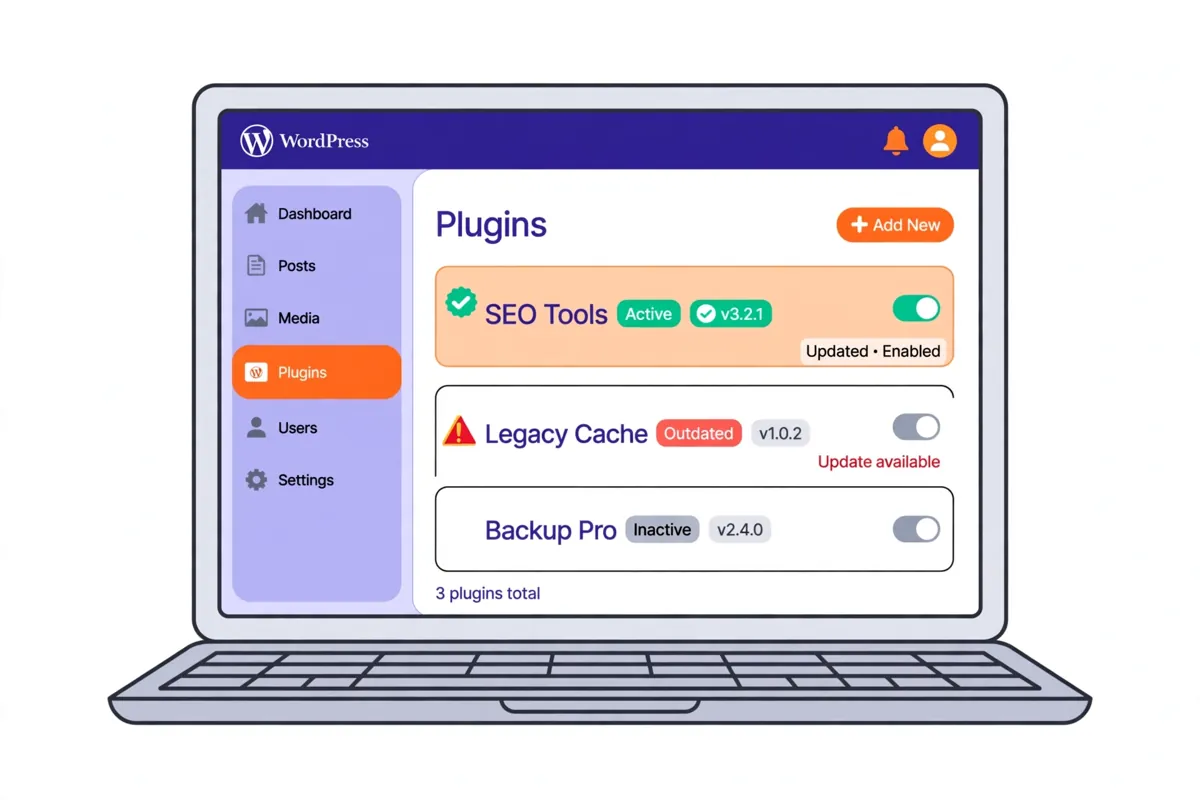
First, confirm your WP Rocket version. In your WordPress dashboard, go to Plugins > Installed Plugins and find WP Rocket. The version number is shown right there. You need 3.24.2 or later. Anything from 3.15 through 3.24.1 is vulnerable if either feature is on.
If you prefer the command line, WP-CLI gives you the answer in one line:
wp plugin get wp-rocket --field=version
Then open WP Rocket > Settings and look at the two features above. If either one is on and your version is below 3.24.2, your site was exposed during the attack window — and you should run the full check in the next section immediately.
Key takeaway: your version number and these two toggles decide your risk. Write them down before you move on — they are the first answers in how to check if WP Rocket hacked your site, and you will need them for the fix later.
How to Check If WP Rocket Hacked Your Site
This is the core of the guide. Work through the steps in order. Most of them take seconds, and together they take about five minutes. You will learn how to check if WP Rocket hacked your site using the same signals the security researchers published — version, stray files, beacon tables, rogue users, and server logs.
Step 1: Confirm your version (again, properly)
You already looked at the version in the previous section — now confirm it is 3.24.2 or later, not just “recent.” The WP Rocket 3.24.2 security update was released on November 19, 2026, and its changelog line reads: “Improve validation of cached CSS, font and preconnect files.” That line is easy to skim past, and many site owners did. Version 3.24.3 followed on November 26, 2026, and is listed as the newest release. Either one closes the flaw.
If your version is below 3.24.2, note that down and keep going — the check matters even more for you, because your site was exploitable during the whole attack window. That version number is the first data point in how to check if WP Rocket hacked your site, and every step after it builds on what you find here.
Step 2: Hunt for stray PHP files
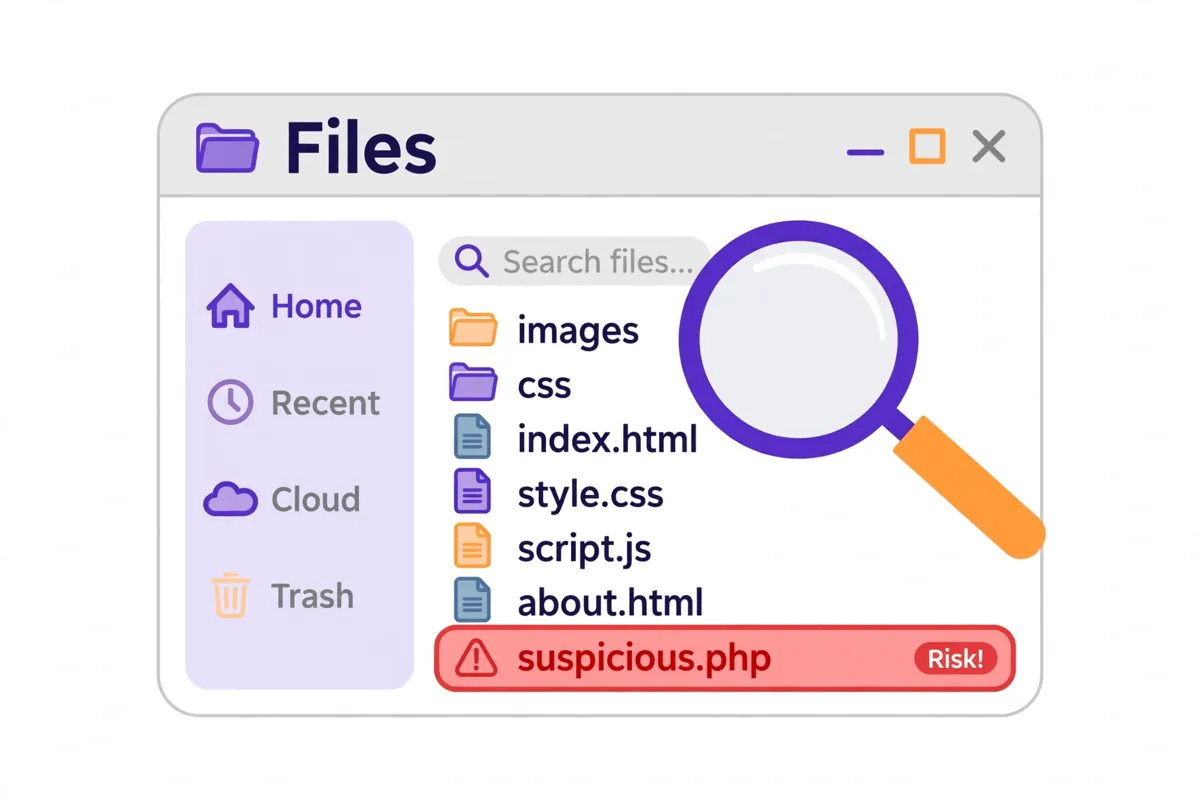
This is the single most important check. Knowing how to check if WP Rocket hacked your site means knowing where attackers hide their files — and when the exploit succeeds, the attacker gets a PHP file written onto your server. Finding one is the clearest sign of a breach.
Look in these places:
- The root of
wp-content/— apart fromindex.php,advanced-cache.php, andobject-cache.php, there should be no PHP files here. Watch for files named likewp-media-*.php. wp-content/uploads/— this folder should hold media, not PHP.wp-content/wp-rocket-config/— Patchstack specifically names this directory as a place where unexpected PHP files appear.- Your site root — and keep an eye out for hidden dot-files and anything dated after November 19, 2026.
Two commands from Ostorlab give you a clean-site baseline. The first should print nothing at all:
find wp-content/cache -type f -name '*.php' -print
The second should list only .css files and .json mapping files:
find wp-content/cache/background-css -type f
If the first command returns a PHP file, or the second returns anything that is not a .css or .json file, treat it as a finding — and do not delete it yet. Copy it first (it is evidence), then follow the cleanup steps in the next section.
Step 3: Check the beacon tables in your database
WP Rocket stores the beacon’s font and preconnect data in two database tables: wp_wpr_preload_fonts and wp_wpr_preconnect_external_domains. (Your table prefix may differ from wp_.) If you want to know how to check if WP Rocket hacked your site beyond the file system, this is where to look next — the database remembers attacks the file system may not show.
Attackers’ fake beacon reports leave traces here. Look for domains that are neither yours nor Google’s — especially trycloudflare.com, bare IP addresses, entries containing ../, or paths ending in .php.
This read-only query checks the fonts table for the most common attack markers:
SELECT id, url, created_at FROM wp_wpr_preload_fonts
WHERE fonts LIKE '%trycloudflare%'
   OR fonts LIKE '%../%'
   OR fonts LIKE '%.php%'
ORDER BY created_at DESC;
Run the same style of check against wp_wpr_preconnect_external_domains. Any row that matches is a red flag. The query only reads data — it changes nothing — so it is safe to run on a live site.
Key takeaway: the beacon tables are where the attack leaves its fingerprints. A clean table does not prove you are safe on its own, but a dirty one is strong evidence of an attack.
Step 4: Check for rogue admin users
A common move after gaining code execution is to create a hidden administrator account, so the attacker can get back in even after the planted file is removed. This is one of the easiest steps to skip when you are learning how to check if WP Rocket hacked your site — and one of the most important, because a hidden admin survives a simple file cleanup.
Compare your dashboard user list with a direct database query. An admin created through SQL may not show up where you expect it to in the dashboard, so query wp_usermeta directly for rows where wp_capabilities contains administrator, and compare every username against the list you recognize.
If you find an administrator you do not recognize, that is a breach — follow the cleanup section now.
Step 5: Check your server logs for the attack pattern
Attackers leave a recognizable pattern in the access logs, and reading it is a core part of how to check if WP Rocket hacked your site:
- Several
POST /wp-admin/admin-ajax.phprequests in a row from an IP address that just read your sitemaps or legal pages — therocket_beaconrequests from a client that never loaded the page it is reporting on. - Requests to
/wp-content/plugins/wp-rocket/languages/with a random file name — this is how attackers checked whether they could write files to your server. - Outbound requests from your web server to unfamiliar hosts,
nip.ionames, ortrycloudflare.comtunnels.
A handful of blocked rocket_beacon attempts means the attack was tried and stopped. A burst followed by a successful write — or a probe to the languages folder — means it may have gone further.
Step 6: What each finding means
Not every suspicious sign means the same thing, so read your results carefully. This is the step where knowing how to check if WP Rocket hacked your site turns into knowing what your results actually prove:
- Failed attempts only (blocked beacon requests, no stray files, clean tables): the attack was tried and failed. Update to 3.24.2 and move on.
- A stray PHP file, a dirty beacon table, or a rogue admin: your site was breached. Do not just update — follow the cleanup steps below.
- A probe to
/languages/with a random filename: the attacker was testing whether they could write. If no file followed, you may have been lucky — but treat it as a warning and run the whole check again after updating.
Key takeaway: a clean check is only meaningful if you ran all five steps. Any single step can miss something; together, they cover the attack from every angle.
What to Do If You Find Something
Finding a stray file or a rogue admin is stressful, but the order of operations matters. The hardest part of how to check if WP Rocket hacked your site is not the check — it is what comes after a positive result. Do the steps below in this order.
1. Copy the stray file first. Do not delete it yet. Take a copy and keep it somewhere safe — it is evidence, and a security professional may need it later to understand what the attacker did.
2. Back up what you have. Back up the site as it is right now, including the database, before you remove anything. A backup taken after the breach still helps you roll back if cleanup goes wrong.
3. Remove the plugin and the planted files. Deactivate and remove WP Rocket, delete the stray PHP files, and remove any rogue admin accounts you found.
4. Treat the whole site as compromised. If the attacker read wp-config.php and the database, assume they have every key on the site: payment credentials, email credentials, storage keys, and remote-management connectors. Rotate all secrets. This is the step most people skip, and it is the step that decides whether the attacker can come back.
5. Run a full malware scan. Use a trusted security scanner to check the whole site — not just the folders you already looked at. If you are not sure how to do this properly, our guide on how to remove malware from a WordPress site without a plugin walks through the process, and our general guide on how to check if your WordPress site is hacked covers the wider signs of a compromise.
6. Replace or reinstall clean. Once the site is clean, reinstall WP Rocket from a trusted source at version 3.24.2 or later — never from a ZIP file someone sent you. Then re-check the version, the two settings, and the beacon tables one more time.
If the breach looks bigger than a single planted file — unfamiliar code in your theme, changed files across the site, or data you cannot account for — get professional help. Our team can take a look: see our WordPress services or contact us and tell us what you found.
How to Fix It — Update to WP Rocket 3.24.2 (or 3.24.3)
Once you know where you stand, the fix itself is simple. If you have followed this guide on how to check if WP Rocket hacked your site, you already know your version and your settings — here is how to update WP Rocket to 3.24.2 safely.
Step-by-step update
- Go to Dashboard > Updates in WordPress, or open Plugins and click Update now next to WP Rocket.
- Wait for the update to finish, then purge WP Rocket’s cache so no old cached files are served.
- Confirm the new version number on the Plugins screen. Do not assume an automatic update ran — verify it yourself.
- Re-open the WP Rocket settings and confirm the two features are in the state you want them in.
- Re-run the quick version of the hacked check from the section above — a clean beacon table and no stray files, after the update.
Updating WordPress core or clearing the cache does not install the plugin update. This is a WP Rocket plugin update, and only the plugin update closes the flaw.
The workaround if you cannot update yet
If you cannot update right away, you can block the known attack paths by turning off both features: open WP Rocket settings and switch off LazyLoad for CSS background images and Self-host Google Fonts (Host Fonts Locally), save, then reopen the settings to confirm both are actually off. This stops the known attack, but it does not fix the plugin — update as soon as you can.
The expired-license trap
Here is the trap that catches real site owners. WP Rocket is a premium plugin, and updates come through the license. If your license expired, your site may not see the update at all — no update notice, no Update now button, nothing. WP Rocket’s own advisory has a specific section for expired licenses, and the answer is to renew the license so the update is offered.
Never install an update ZIP from an unsolicited message, email, or download site. Use your vendor account or your host’s approved package source. A fake “security update” ZIP is exactly how attackers would love you to “fix” this yourself.
Key takeaway: verify the version after every update. An update you assume happened is the same as an update that never happened.
Why Updating Alone Is Not Enough
This is the honest part, and it matters more than the update instructions. Anyone can learn how to check if WP Rocket hacked your site — but the check only helps if you act on what it finds. Updating to 3.24.2 stops new attacks. It does not remove files an attacker already planted, delete a rogue admin account, or rotate the secrets an attacker may have read. If your site ran a vulnerable version with either feature on since November 25, the hacked check is required, not optional.
Think of it this way: updating is changing the locks. Cleaning is checking whether someone already made a copy of the key and walked through the house. You need both.
That is also why the timing of this story is so cruel. The attacks started on November 25, over the US Thanksgiving holiday, while site owners were offline with their families. The fix was already available — 3.24.2 had been out since November 19 — but a fix only helps the people who install it. The site owners who were hit hardest were not careless. They were on holiday.
The same pattern shows up across the WordPress security stories of the past week. Our cluster covers three of them: the phpAfterShell PHP vulnerability from November 25, the WordPress core CVE-2026-119977 check from November 26, and the WordPress Protect The Shire backdoor from November 28. In every case, the fix was simple and the damage came from the gap between the fix existing and the fix being installed. Close that gap first, then check for what slipped through it.
A Real Intrusion: What Happened to One Maintained Site
The clearest proof that this is not a theoretical risk comes from a real case published on November 26, 2026. The agency agenciarse reported that one of the sites they maintain was exploited through this exact flaw.
The attackers did not smash their way in. They probed first: requests to /wp-content/plugins/wp-rocket/languages/ with a random file name, checking whether they could write files to the server. Once they confirmed they could, they used the beacon flaw to plant their code. The site was maintained — it had people looking after it — and it was still hit, because the vulnerable version was running with an exposed feature switched on during the attack window.
That is the concrete example to remember. This flaw does not only hit neglected sites. It hits any site running a vulnerable version with either feature on, maintained or not, while the owner is busy elsewhere. The five-minute check in this guide is the difference between finding out from your logs and finding out from your visitors — and it is why every WP Rocket owner should know how to check if WP Rocket hacked your site before the next holiday, not after it.
For the full technical timeline of the flaw and the attack, see the primary source: Patchstack’s report on CVE-2026-125812. Ostorlab’s technical deep-dive explains the path-traversal root cause, Rescana’s timeline covers the 3.24.3 release, and agenciarse’s real intrusion case shows the detection steps on a live site.
Frequently Asked Questions About How to Check If WP Rocket Hacked Your Site
Is WP Rocket safe to use now?
Yes — on version 3.24.2 or later, the flaw is fixed. Update, purge the cache, and verify the version number. But before you relax, remember how to check if WP Rocket hacked your site: if your site ran a vulnerable version with either feature on since November 25, run the hacked check in this guide first, because updating does not remove files an attacker already planted.
How do I know if my WordPress site is hacked?
The signs include unexpected PHP files in wp-content/ or uploads/, unfamiliar admin users, strange entries in WP Rocket’s beacon tables, bursts of POST /wp-admin/admin-ajax.php requests in your logs, and files dated after November 19 that you did not create. That is the short answer to how to check if WP Rocket hacked your site — the step-by-step check above covers each sign in detail. Our general guide on how to check if your WordPress site is hacked covers the wider signs beyond this one flaw.
What versions of WP Rocket are affected?
Versions 3.15 through 3.24.1 are affected, but only when LazyLoad for CSS background images or Self-host Google Fonts (Host Fonts Locally) is switched on. Both features are off by default. Version 3.24.2, released November 19, 2026, fixes the flaw, and 3.24.3 followed on November 26, 2026.
Does updating WP Rocket remove malware?
No. Updating stops new attacks through this flaw, but it does not delete planted files, remove rogue admin accounts, or rotate stolen secrets. That is the whole point of learning how to check if WP Rocket hacked your site before you update: if you find signs of a breach, follow the cleanup steps — copy the evidence, back up, remove the files and accounts, rotate secrets, and run a full malware scan.
Do I need WP Rocket if both features are off?
Not for this flaw — with both features off, your site is not exploitable through CVE-2026-125812. But WP Rocket does far more than those two features: caching, file optimization, and database cleanup are the reasons most sites run it. Keep it updated regardless, because the next flaw may not depend on a setting you can switch off.
Conclusion
Here is the whole story in one line: the fix has existed since November 19, the attacks started on November 25, and the only thing standing between your site and the attackers is five minutes of checking. Now you know how to check if WP Rocket hacked your site — confirm the version, hunt the stray files, read the beacon tables, check the admins, and scan the logs. Then update, verify the version, and check once more.
Do not let an update you assumed happened be the reason your site stays hacked. Run the check today, while the attacks are still automated and active — because the attackers are not taking the holiday off, and neither should your site’s security.